

Upload once, transform forever

Most image pipelines make a bet at upload time: generate the thumbnail, the medium, the large, and the WebP variants, then store them next to the original. When design adds a square card or wants AVIF, you run another batch job over the library.
With Transloadit Storage and the Smart CDN, you keep the original and describe the derivative in a URL. The first request renders it; subsequent requests can use the cached result. A new size or crop does not require another upload or a library-wide migration.
Let's store one photo and display it as a WebP card, a square AVIF image, and a wide JPEG crop. No custom Template, AWS CLI or front-end framework is required.
Transloadit Storage is in private preview. Ask us to enable it for your workspace. You'll also need Node.js 24.15+ or 26+ for this example.
Try it
npx @transloadit/node@latest init upload-once my-gallery
cd my-gallery
npm run demo
The initializer creates a new directory with compatible dependencies, a sample photo and a small
demo.ts. It does not upload anything or change an existing project. The demo opens browser login
when needed, checks Storage access and uploads the photo. Open gallery.html to see its three variants.
Choose the intended Workspace on the approval page. If you need a different account, open the login link in a private browser window so you can keep your current Console session.
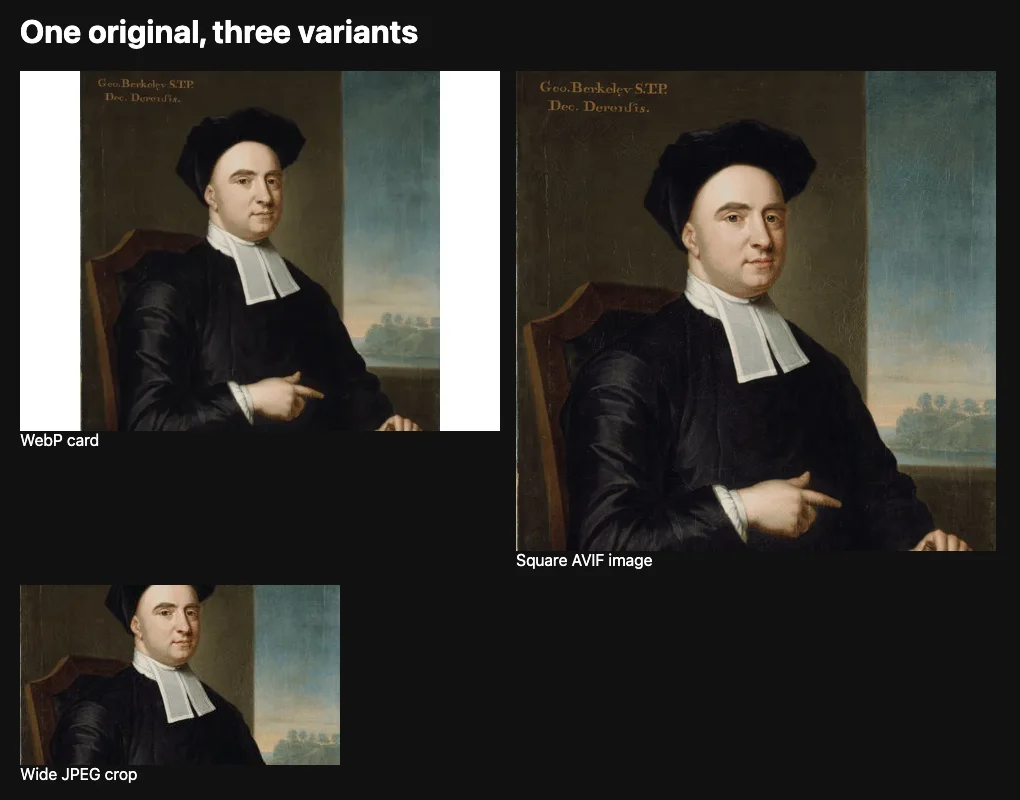
pad; fillcrop fills the wide frame.The complete example and README ship with the SDK release. The generated project pins that version, and you can edit its source.
Change the output, keep the original
At the top of demo.ts, variants defines each output's width, height, format and resize strategy.
Change a width or crop and run npm run demo again. The CLI reuses the matching original's saved
receipt instead of uploading it again, then generates fresh URLs for the variants. The terminal
reports whether the photo was uploaded or reused.
To try your own photo:
npm run demo -- ./your-photo.jpg
storage store --hashed uses a content-addressed filename and saves the asset/version receipt in
transloadit.images.json. Keep that catalog: it lets the CLI skip repeat uploads. The README
covers overwrite and recovery behavior if an upload does not finish cleanly.
auth smart-cdn signs URLs for the published builtin/storage-preview@0.0.3 pipeline. In these
URLs, w and h set the output box, f chooses the format, and q sets quality. pad fits the
whole image inside the box; fillcrop fills it by cropping. The example supplies both dimensions.
The resulting page contains ordinary image elements pointing directly at the Smart CDN. Your application does not proxy image bytes, and requesting another variant doesn't modify the original.
From this example to your application
The demo uses your local CLI credentials and creates temporary signed access URLs. It does not
publish a directory, but uploading into an already-public directory does not make it private.
Keep gallery.html private: anyone with its URLs can access those derivatives until they expire.
The example rounds expiry to an hour boundary for one to two hours of access and better URL reuse.
Regenerate the page when the URLs expire. Actual cache lifetimes come from the response's
Cache-Control header; expiry cannot recall bytes someone already downloaded.
For a deployed application, use separate upload credentials and a server-only delivery key with
smart_cdn:sign. Browser CLI logout revokes the login key, so do not deploy it as an application key.
Authenticate users and check access to their saved asset records before signing. Never expose an
endpoint that signs arbitrary browser-supplied asset IDs or transformation parameters.
Choose the integration that matches your app:
- Server-side uploads: use the Node SDK's
storeImage()helper and save the returned receipt with its owner. Existing S3 and Assembly uploads can also return canonical Storage records; do not invent asset IDs from filenames. - React or Next.js: use the
image and Viewer integration
for responsive rendering, loading states and galleries. Viewer is a published alpha; pin the
version you test. Existing Next.js projects can use
image init, without creating another app. - User-uploaded galleries: the Convex wedding demo combines Uppy uploads, reactive receipt queries and authorized photo/video delivery. It builds on the same Storage identities and delivery helpers, with application-owned guest access rules.
What happens when you replace a file?
The asset/version pair selects exact retained bytes, not “whatever is at this path today.” A
Storage move preserves that identity. An overwrite creates a new version: save its new receipt to
show the replacement. Old version-pinned URLs still refer to the old version while it is retained
and accessible. Here, v is the real Storage version ID, not a v=2 cachebuster.
The same Built-in can preview a stored PDF or video using that file's own asset/version record.
The example's storage store command is for images; use an Assembly or S3 upload for other media
and retrieve their canonical records. For specialized processing, use a signature-required custom
Template with URL Transform, checking each Robot's Smart CDN support.
Heavier video work belongs in an Assembly whose results you store for delivery.
Start with the runnable example, change one variant, and keep your original.